How to Change Your Gamertag — Xbox, PSN & Ubisoft
Changing your gamertag means a different menu on every platform: Xbox calls it a Gamertag change in Account settings, PlayStation calls it an Online ID change, and Ubisoft Connect calls it a nickname change. Each gives one free change before charging a fee, with its own character rules.
On this page
- Change your Xbox Gamertag
- Change your PSN Online ID
- Change your Ubisoft nickname
- Gamertag ideas that pass the filter
- Why the change fails
- FAQ
How to change your Xbox Gamertag
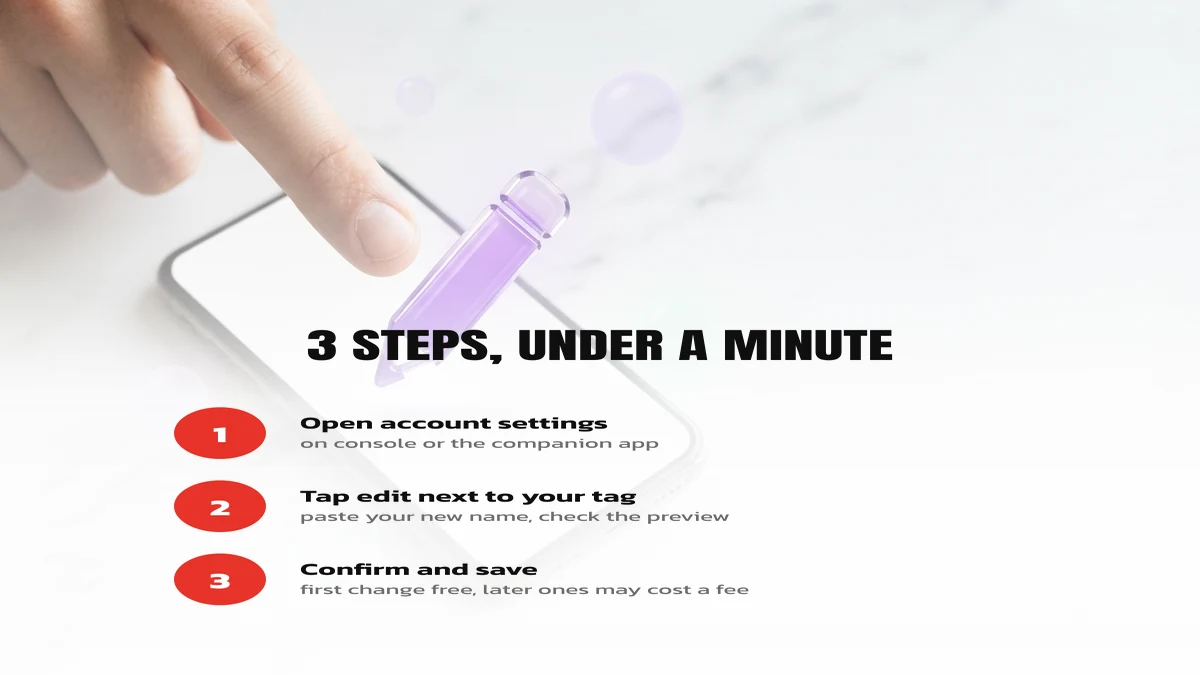
On console: open Settings → Account → My profile, select your Gamertag, pick a suggestion or type your own, then confirm. From a phone or PC, open the Xbox app → your profile → Customize → Gamertag. Either way takes under a minute.
- Pick your new tag first — copy one from the ideas below or style a word in the NickGen generator.
- Open Settings → Account → My profile on your Xbox, or the Xbox app on phone/PC.
- Select your current Gamertag, then “Change Gamertag”.
- Type or paste your new tag (1–12 characters, letters/numbers/spaces).
- Confirm. Your first change is free; after that Xbox charges a fee — check the current price on your own account page.
Since Microsoft’s 2019 “modern Gamertags” update, your new tag does not need to be globally unique — Xbox quietly adds a hidden 4-digit suffix if someone else already has it, so most short words are available again.
How to change your PSN Online ID
On console: Settings → Users and Accounts → Account → Profile → Online ID → Change Online ID. On the web: sign in at PlayStation’s account management page and open the Online ID section. Your Online ID is 3–16 characters (letters, numbers, hyphen, underscore), and it must still be unique across PlayStation Network.
- First change: free, since Sony made Online IDs changeable in 2019 (they used to be permanent).
- Later changes: cost a fee set by PlayStation Support — confirm the live price before paying.
- Heads up: some older games and your friends’ chat history may still show your previous Online ID for a while.
How to change your Ubisoft nickname
Sign in at Ubisoft Connect (account.ubisoft.com) or open the Ubisoft Connect app, go to your profile → nickname, and edit it directly — Ubisoft does not require a Rename Card or in-game currency for this one. Your nickname must be unique and pass Ubisoft’s content filter; there is a cooldown between changes, so space out repeated edits.
Gamertag ideas that pass the filter
Every idea below uses only letters, numbers and a single underscore, so it works as-is on Xbox, PSN and Ubisoft without edits. Tap to copy, then paste it into the field for your platform. Want Blood Strike names instead, with heavier symbol use? That game’s name field accepts far more Unicode than these three platforms.
Cool gamertag ideas
Clean & friendly gamertag ideas
Steam-only stylised versions
Steam’s persona name field is far looser than Xbox, PSN or Ubisoft, so these decorated versions of the same names above are Steam-only — don’t paste them into a platform that requires plain letters/numbers/underscore.
Need a free name-change card for a different game first? See the blood strike free name change card guide for how that works, or browse Final Strike names if you play that title too.
Why the change fails
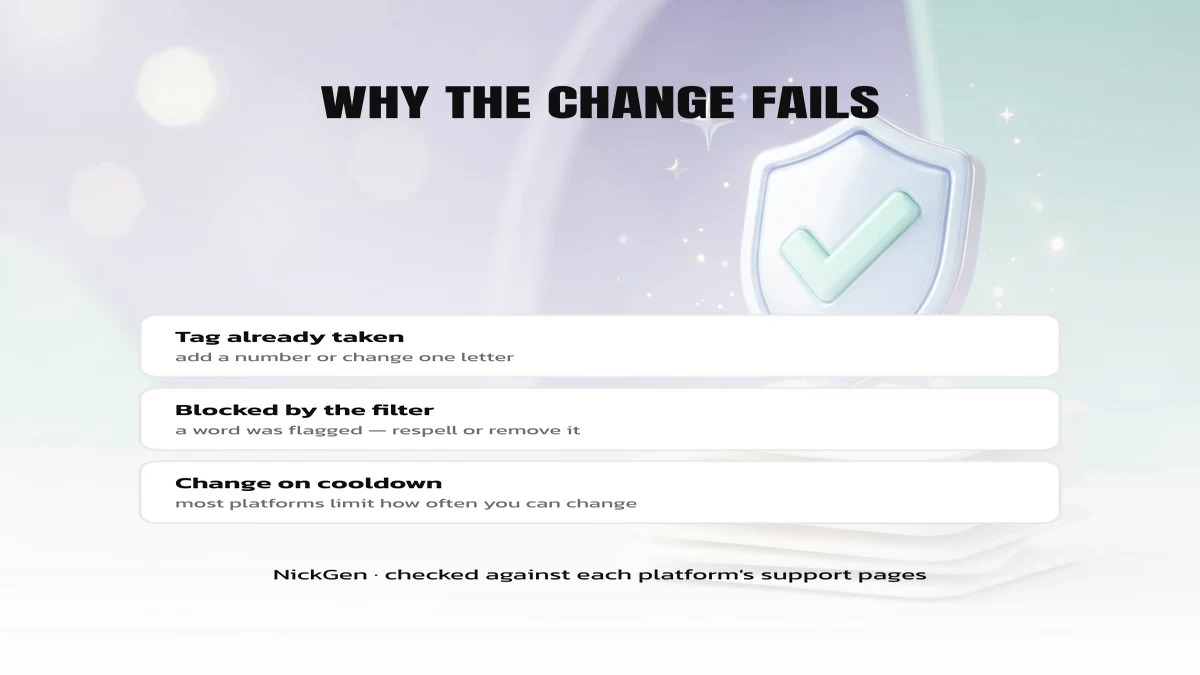
| Message or problem | Likely cause | Fix |
|---|---|---|
| Tag/ID already taken | Another account uses it (PSN, Ubisoft — both unique) | Add a number or change one letter |
| Not available on Xbox | Rare since 2019 — Xbox usually appends a suffix instead | Try again; Xbox will offer a variant |
| Contains banned words | The platform’s content filter caught a word | Remove or respell the flagged word |
| Can’t change yet | Cooldown since your last change | Wait and try again later |
| Payment required | You already used your free change | Pay the current fee shown on your account page |
FAQ
Is the first gamertag change free?
Yes on all three: Xbox, PlayStation and Ubisoft each give you one free change before charging anything, per their current support pages (checked October 2026).
How do I change my gamertag on Xbox?
Open Settings → Account → My profile on console, or the Xbox app’s Customize → Gamertag on phone/PC, pick a new tag and confirm. See the full steps above.
How do I change my Ubisoft username?
Sign in to Ubisoft Connect, open your profile and edit your nickname directly — no Rename Card is needed, just confirm it passes the content filter and isn’t already taken.
How do I change my PSN username?
Go to Settings → Users and Accounts → Account → Profile → Online ID → Change Online ID on console, or the Online ID section of PlayStation’s account management site.
Ready to pick a tag? Type any word into NickGen and copy it in dozens of styles before you spend your free change.